
It is possible to connect two cloud storage providers: pCloud and OneDrive. It is also possible to upload this data to your own servers via SFTP (i.e. self-hosted SFTP server).
OneDrive
There are only 3 steps you need to do to set this up.
- Create a OneDrive file request link: https://support.microsoft.com/en-us/office/create-a-file-request-f54aa7f8-2589-4421-b351-d415fc3b83af
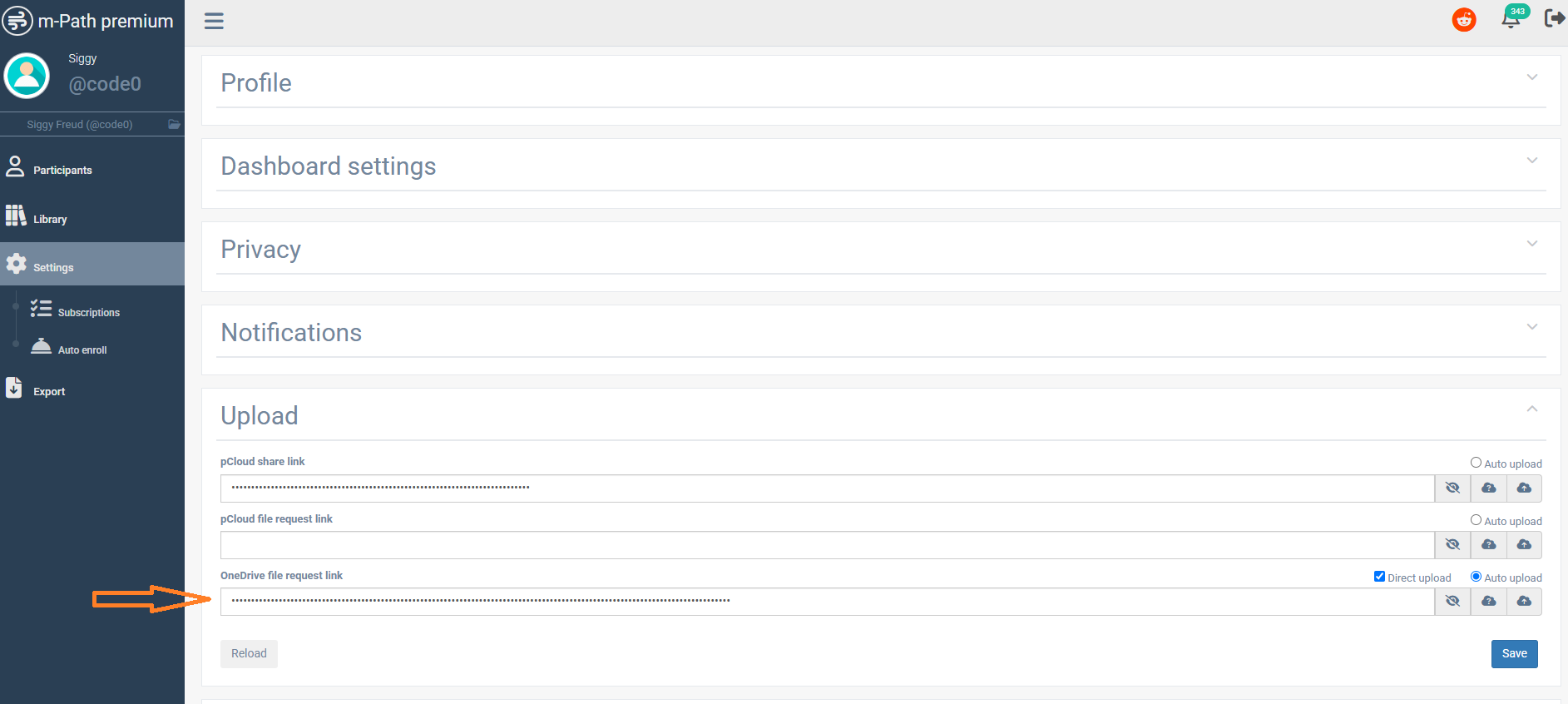
- Paste this link in your dashboard (see settings, upload, OneDrive file request link). This is shown in the image below.
- Click on the auto upload button next to the OneDrive link. Don’t forget to click on save.
Direct upload
Normally a file is sent int the following way:
- The file is saved on the participants phone
- The file is sent to m-Path servers from the participants phone and is deleted on the participants phone.
- The file is sent to the OneDrive folder from the m-Path servers and is deleted on the m-Path servers.
For OneDrive we however created a feature that makes this even more privacy friendly. It is possible to send the files directly from the phone to the OneDrive folder. Therefore the files are never even processed by m-Path servers (hence improving privacy). To do so, the research has to enable direct upload (next to Auto upload) and click on save. The files are now sent in the following way:
- The file is saved on the participants phone
- The file is sent to the OneDrive folder from the participants phone and is deleted on the participants phone.
pCloud
If you want to include file upload questions (Audio recordings, pictures) to your survey or if you are using m-Path Sense, you will need to provide a cloud storage location to where these files may be uploaded. m-Path natively supports pCloud, because of their secure data storage, sensible pricing and respect for privacy. It is possible to use pCloud for free, in which case you get 3GBs of storage, which should hold about a 1.000 average-quality pictures, or 25.000 minutes of average quality audio. To be sure, we do however advise taking a pCloud premium account.
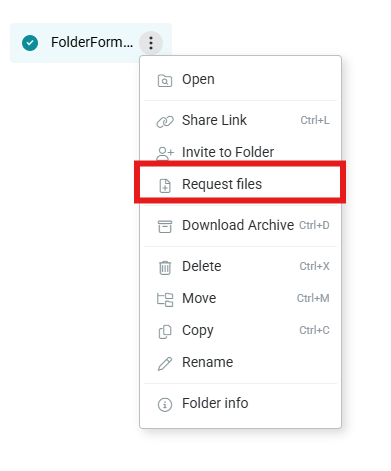
Once you have a pCloud account, you need to create a file request link. To do so, create a folder, open settings of the folder and click on ‘Request files’ (see image).
You then have to copy the created link and paste it into pCloud file request link field (see image)
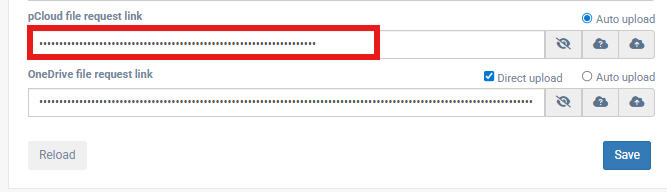
Make sure to click on ‘Auto upload’ button of this pCloud request link to enable this upload for m-Path and don’t forget to click on the save button.
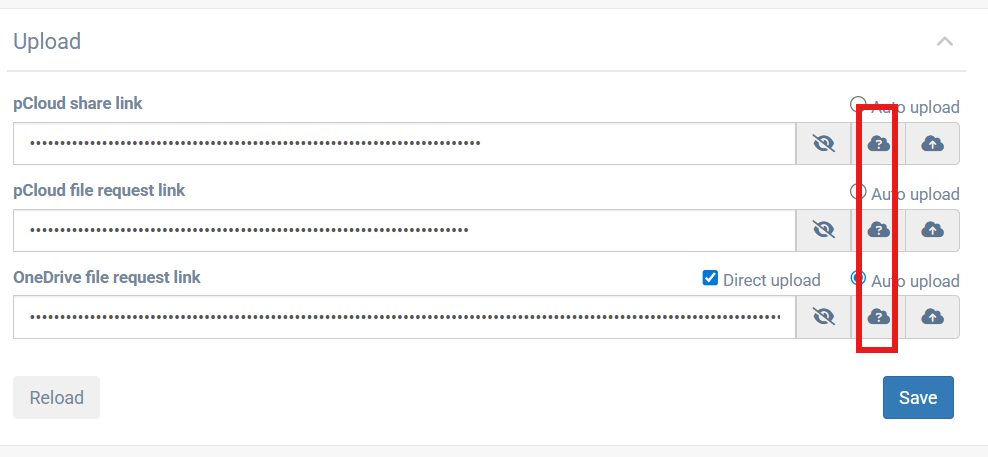
If you followed the steps carefully, you should now be able to receive files uploaded by clients, which will appear in the m-Path folder in your pCloud account. You can click on the cloud with a questionmark to send a test file to see if the integration worked.
Each upload from m-Path will result in a different folder in pCloud. This is how the file request functionality works in pCloud and there is no way around it. To copy all files in the subfolders to the rootfolder, you can use the following R script:
rm(list=ls())

# 1. Set your root directory path
root_path <- "C:/Users/MerijnMestdagh/OneDrive - m-Path Software/AHA/temp/testR" # Change this to your folder path

# 2. Get everything (files in root AND subfolders)
all_paths <- list.files(path = root_path, recursive = TRUE, full.names = TRUE)

# 3. Filter for:
#    a) Files only (not directories)
#    b) Files whose parent directory is NOT the root_path
files_to_move <- all_paths[!dir.exists(all_paths) & normalizePath(dirname(all_paths)) != normalizePath(root_path)]

# 4. Define destination (same as before)
new_paths <- file.path(root_path, basename(files_to_move))

# 5. Execute the move Cut or Copy
# Use file.rename for 'Cut' (much faster)
# Use file.copy for 'Copy' (safer if you want backups)
success <- file.rename(from = files_to_move, to = new_paths)

# 6. Check if it worked
message(sum(success), " files moved successfully.")
The file names contain the necessary info to identify which files came in response to which questions. If any problems arise, don’t hesitate to contact us.
Self-hosted SFTP server
You can also upload client files directly to your self-hosted SFTP server. If you have one set up, please contact us so we can configure your account accordingly.
Technical Design
- m-Path establishes an outbound SFTP connection to the designated SFTP server.
- The connection is established over the internet using SFTP/SSH, typically via TCP port 22.
- The SFTP server should only be accessible from the specific source IP address of m-Path when accessed from the public internet. Access can therefore be restricted through IP whitelisting.
- Authentication is performed using an Ed25519 SSH key pair. m-Path will provide the public key.
- m-Path uploads the files to a designated directory on the SFTP server.
- After uploading, m-Path can verify the transfer based on the file size and, if configured, by reading the uploaded file again and verifying its integrity using a SHA-256 hash. For this purpose, the SFTP account requires read and stat permissions on the files uploaded by m-Path, in addition to upload/write permissions.
- After the transfer is completed, the SFTP connection is closed.
Requirements from the Receiving Party
- SFTP hostname/IP address
- SFTP port (default: 22)
- Technical SFTP account
- Directory where m-Path is permitted to upload files
- Upload/write and read/stat permissions on the uploaded files, to allow verification of the file transfer
- Whitelisting of m-Path’s public source IP address
- Registration of the provided public SSH key
Trouble shooting
If you think there is something wrong with the file upload, you can take the following trouble shooting steps:
- Try the test function (see image below). This should state ‘test succeeded’ if it works.
- The participant can go in the app to settings, extra, upload to see if some files still need to be uploaded. If there are still files to be uploaded, the participant can manually upload them by clicking ‘upload now’.
- If the test function works (step 1), but files cannot be uploaded it means that the app is looking and trying to upload the files, but that they cannot be found somehow. A common reason for this is: The participant recovered their account. The audio files where recorded in a previous app instance and can therefore not be found after recovering (installing the app again). When a participant recovers, old audio files (that were not yet uploaded) are not recovered too (as they were not uploaded to the server yet). This would unfortunately mean that those audio files are lost in this case. In most cases this luckily only pertains a minority of files for the participant (as audio files are also uploaded automatically after surveys).
Manually upload from app
Use this manual to learn how the user can manually trigger uploads from the app.