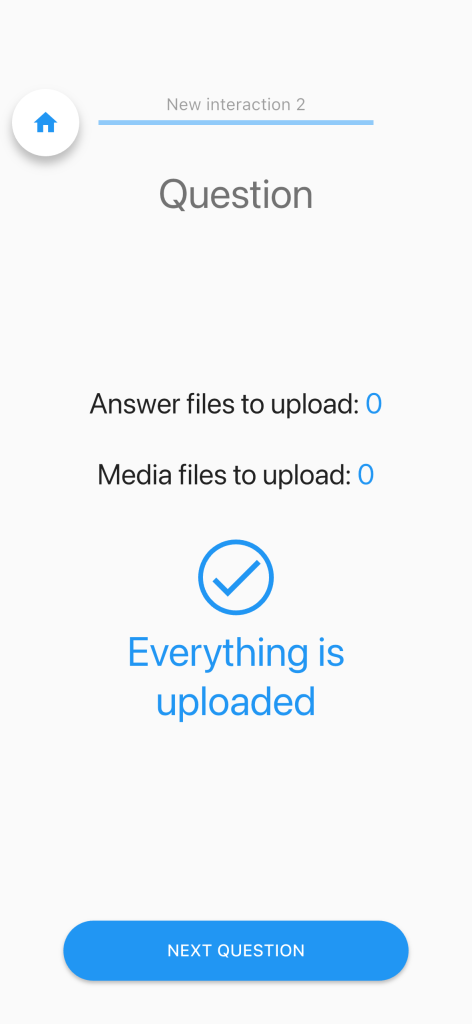
The Upload Page
The Upload page lets you manually upload your collected data to the research team.
Data is uploaded automatically at the end of each questionnaire, provided an internet connection is available. If the connection is absent or unstable, the upload will be retried automatically at the end of the next questionnaire.
This page is primarily useful at the end of the study to verify that all data has been successfully sent. You can navigate to it manually at any time, or include it as the final step in your questionnaire flow, in that case, refer to Part 2 of this manual for setup instructions.
How to open it
- Tap the gear icon to open the side menu.
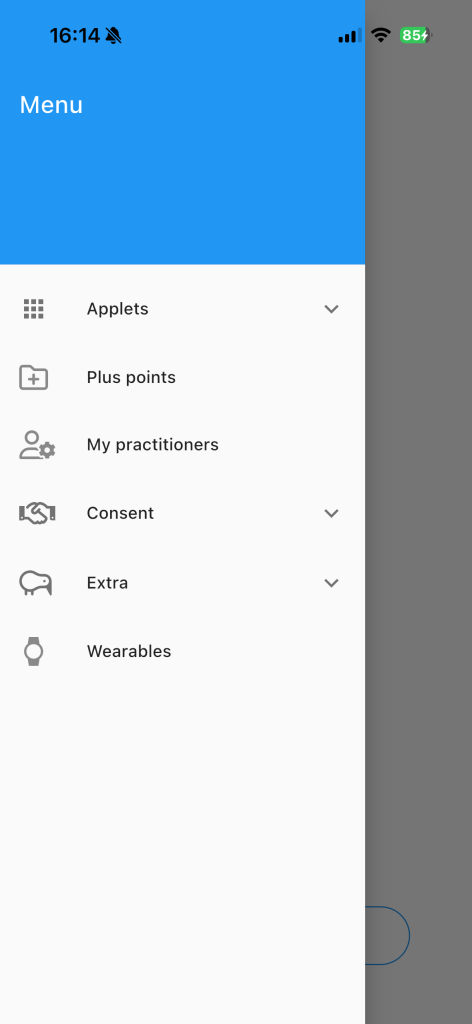
- Scroll down and tap Extra to expand that section.
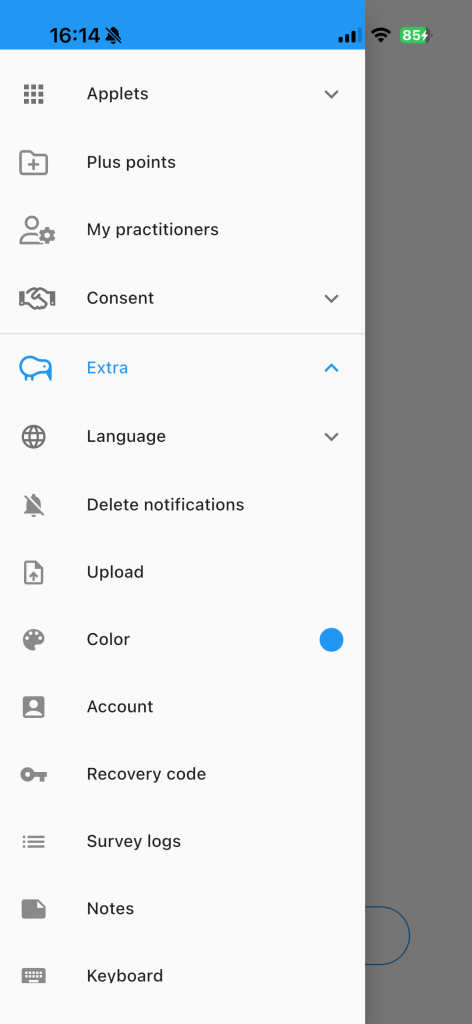
- Tap Upload.
What gets uploaded?
The app may collect two types of data, depending on your study:
| Type | What it is |
|---|---|
| Answers | Your responses to questionnaires and questions |
| Media files | Photos, audio recordings, or other files captured during the study |
How to upload
- Open the Upload page from the menu.
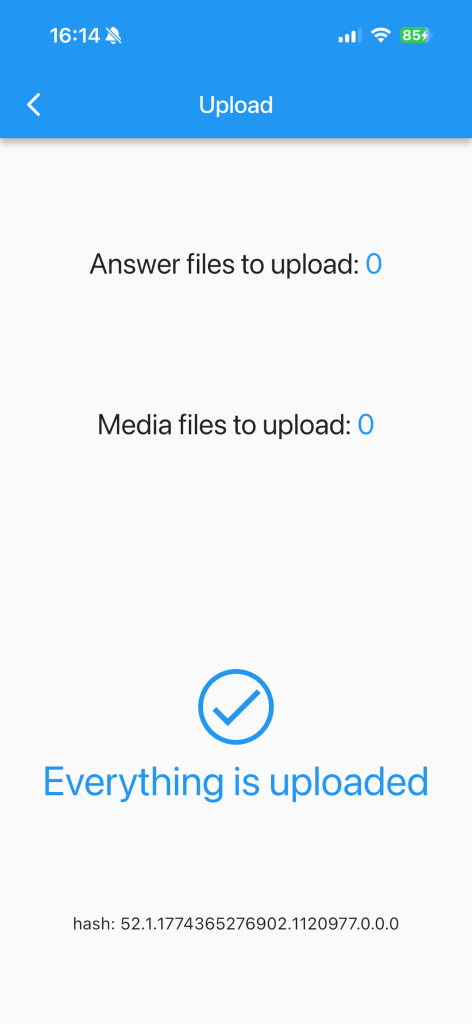
- You will see the number of answers and/or media files pending.
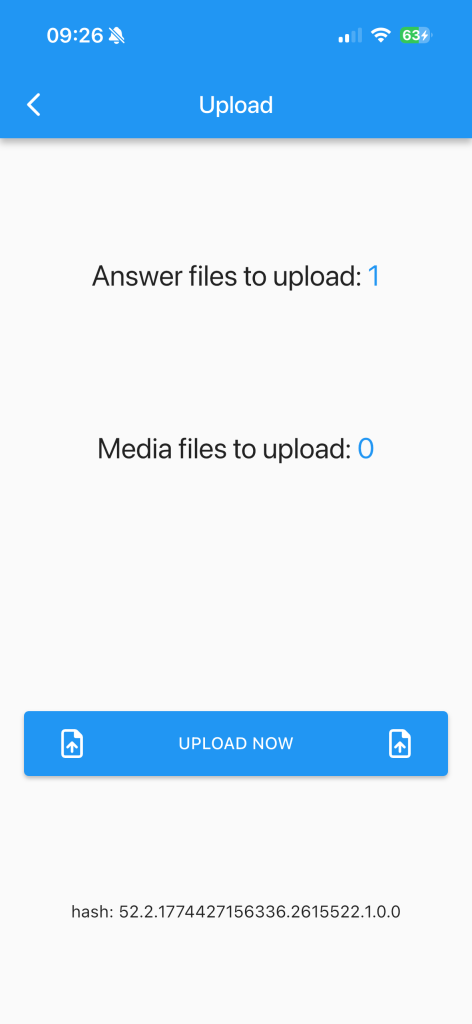
- Tap Upload Now to send everything to the research team.
- A loading indicator will appear, please keep the app open and stay connected to the internet.
- Once done, a blue checkmark and the message “Everything is uploaded” confirm success.
Something went wrong?
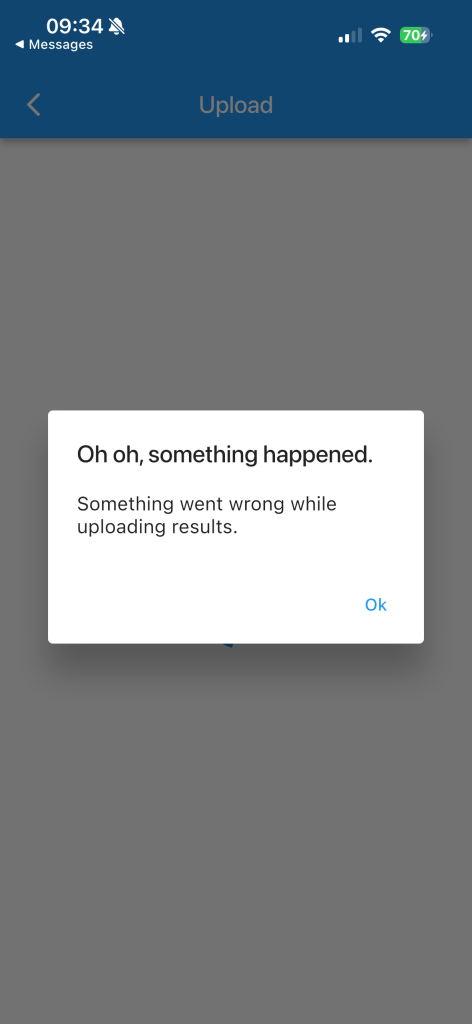
If the upload fails, an error message will appear on screen. You can try again by tapping Upload Now once more. If the problem persists, please contact your study coordinator.
The Upload Question (inside a questionnaire)
Some studies include an Upload step as part of a questionnaire. It appears at a specific point in the survey flow and works the same way as the standalone Upload page.
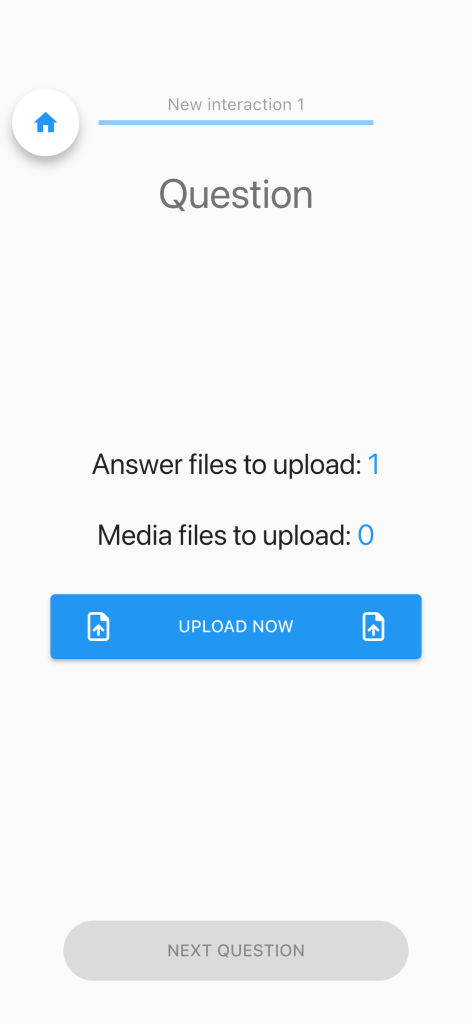
- You must tap Upload Now to proceed, the questionnaire will not advance until the upload is complete.
- If everything was already sent, you will see the blue checkmark automatically and can continue without doing anything.