
When your app is in the background, iOS will eventually suspend it to save battery. Live Activity works around this by keeping a small, always-visible indicator on your Lock Screen and Dynamic Island (on supported iPhones), which signals to iOS that your app is actively doing something, in this case, continuously sensing in the background.
How to turn it on
You have two ways to enable it:
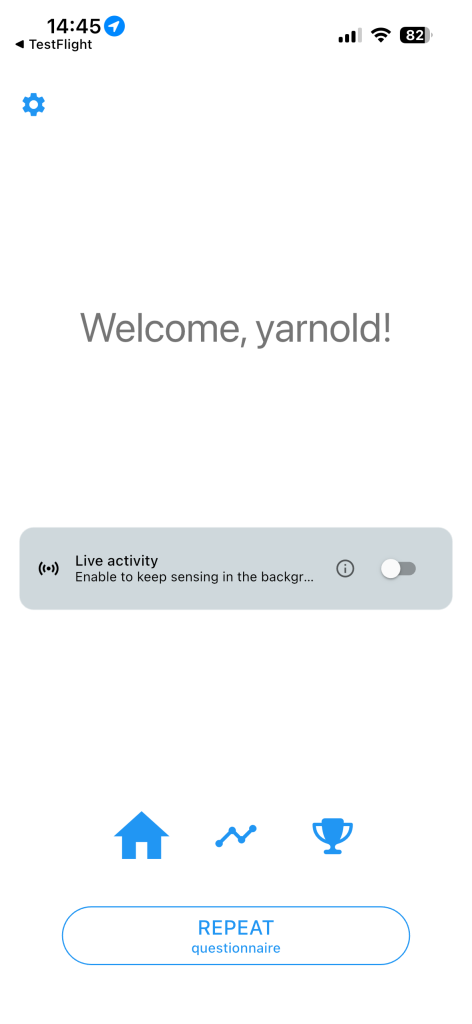
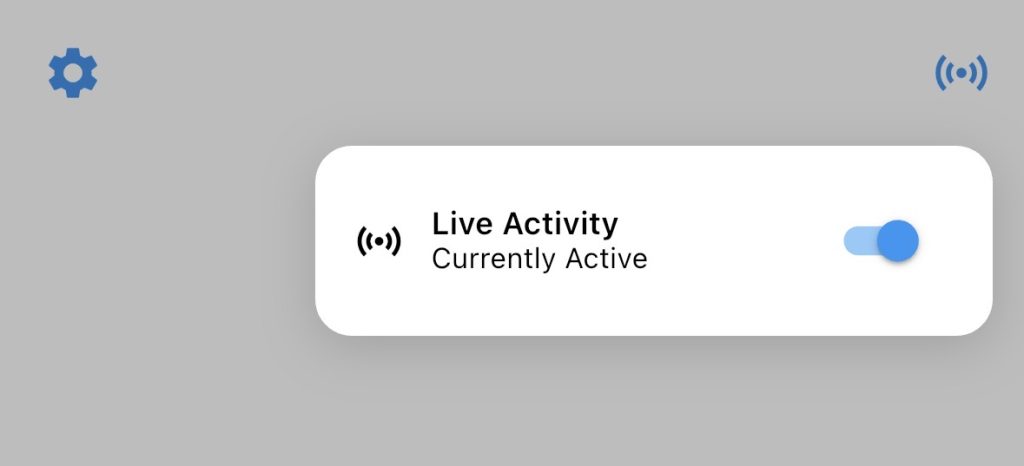
Option 1: Using a toggle in Full Mobile sensing setup: You can toggle ‘Enable live activity’ on in the Full mobile sensing setup question item. This will show a banner labelled “Live activity” directly in the main screen of the app. Tap the toggle on the right side of that banner. After toggling the live activity on, the banner will dissapear and a small icon will appear in the top right of the screen allowing you to turn it back off.

Option 2: From Settings Go to Settings → Sensing settings and flip the switch inside the Background Sensing card.
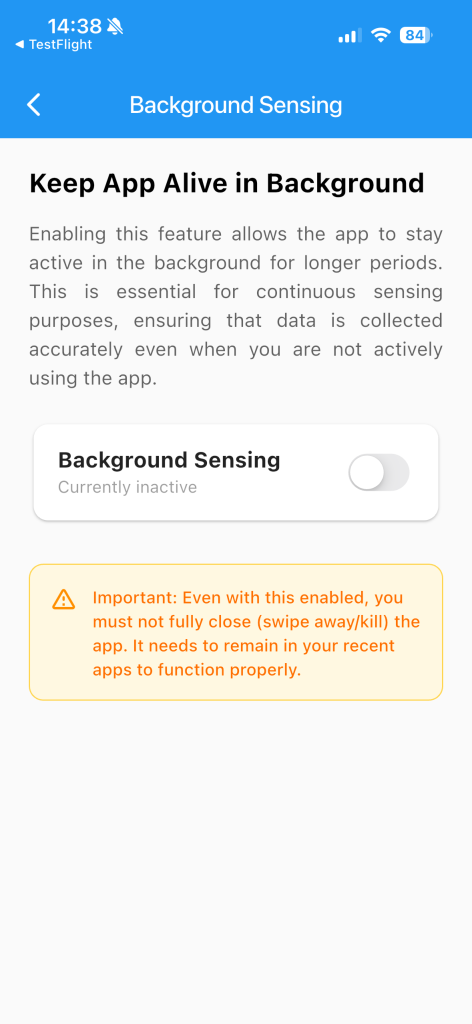
Once enabled, the status below the switch will change to “Currently active”.
How to turn it off
Go to Settings → Sensing settings and flip the switch off. The app will ask you to confirm before stopping — tap Disable to proceed, or Cancel to leave it running.
What happens when it stops?
The live activity will stop in three situations:
- You manually disable it via the settings or banner toggle.
- The selected duration expires (e.g. after 3 days if that was your choice).
- iOS terminates the Live Activity itself (this can happen if the device runs critically low on battery, or if iOS decides to end it).
When enabled, the OS will show a notification for the duration of the activity. The stop button can be used to stop the live activity. Because this is a background task, the activity needs to report some kind of progress, this is also shown to the user around the stop button, unfortunately, we can not remove this.

When the user exits the app, or the OS decides to suspend the activity, it will show this to the user in the dynamic island, but also in the notification itself. Unfortunately, we have no control over this error message and icon that the OS will show.

Tapping the dynamic island will open it up and make the error message bigger. The user can then swipe it away from here.
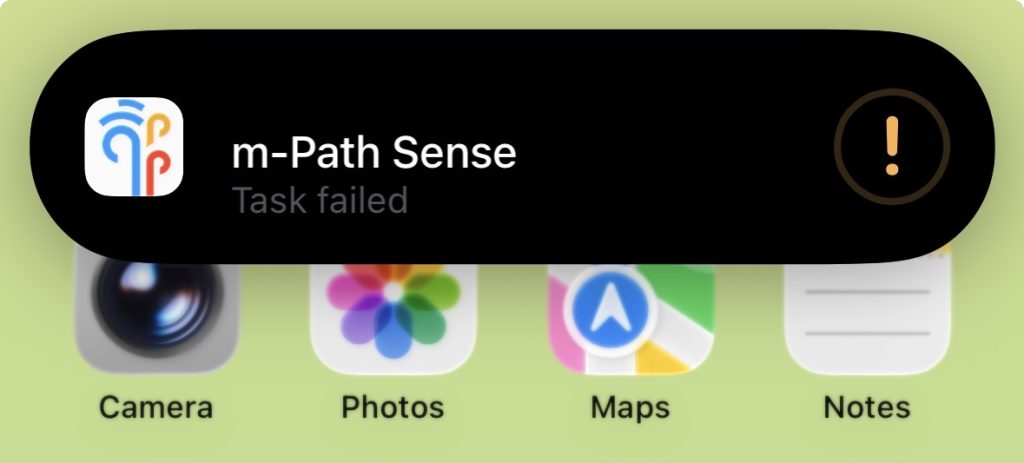
The error message will also be shown in the notification itself.

Battery usage note
The app displays an indicator when this feature is active: background sensing uses more battery than normal. If battery life is a concern, choose a shorter duration or disable the feature when you don’t need continuous monitoring.