
m-Path allows practitioners and researchers to communicate efficiently with clients or participants by way of a built-in chat function. From the dashboard, you can activate this function for specific users, upon which the app user will get access to a private chat channel between you and them. This page will explain how to enable and use this m-Path feature
Enabling the chat
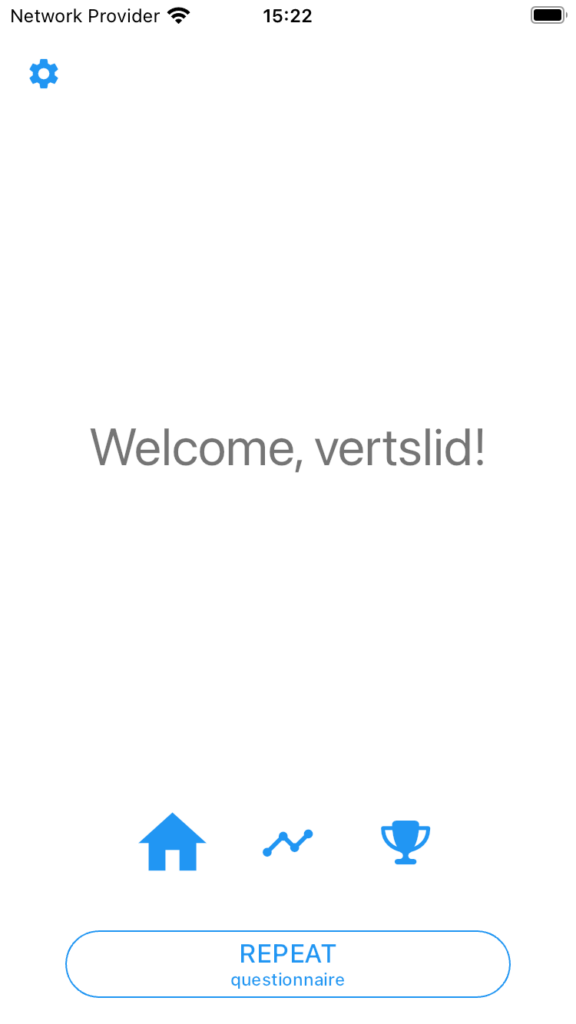
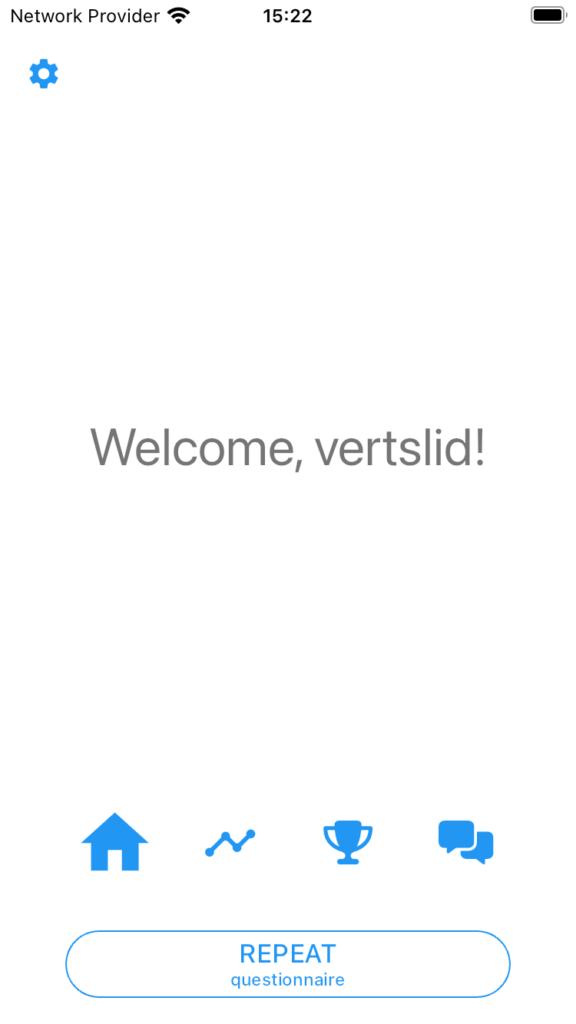
On the app user side, the interface will change as follows:
How to chat
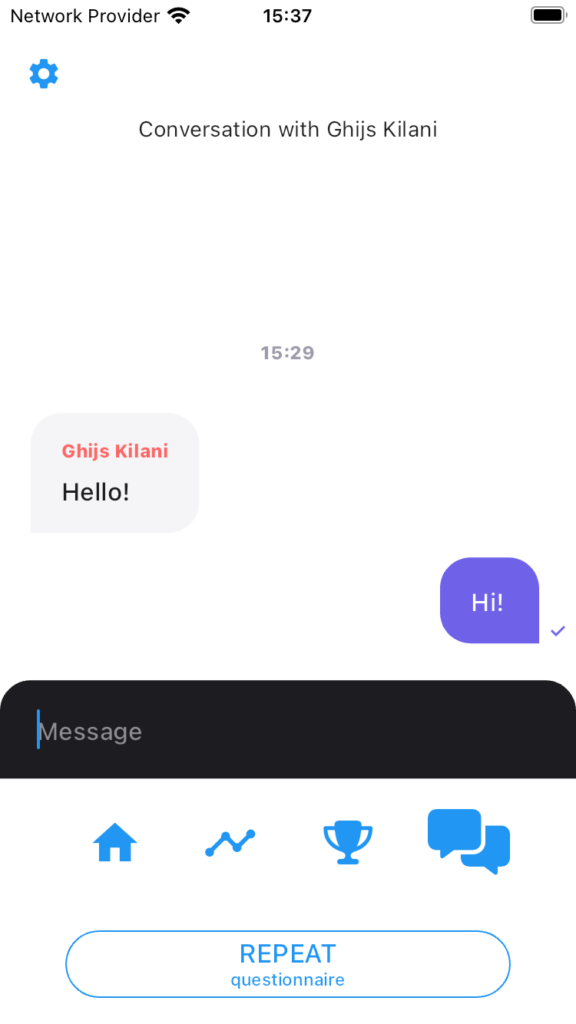
In the app, the client can chat by navigating to the chat window on the homescreen
Group Chat
m-Path allows researchers to set up a shared chat channel between multiple participants within the same protocol. This makes it possible to send messages to a group of participants at once, and for participants to see and respond to those messages directly in the app. Every participant in the group can read the same messages and reply to them. This is useful for sharing updates, instructions, or prompts with a group without needing to contact each participant individually.
Setting up a group chat
To enable a group chat, you need to add participants to a protocol and then add a chat item to that protocol’s questionnaire.
Step 1: Add participants to the protocol
Before a group chat can work, all participants you want to include must be enrolled in the same protocol. For instructions on how to add participants to a protocol, see Protocols.
Step 2: Add a chat item to the questionnaire
Once your participants are in the protocol, open the questionnaire you want to use and add an Open Chat item. This item activates the group chat channel for all participants in the protocol.
Step 3: Give the chat a label
After adding the Open Chat item, enter a chat label. This label is the name that identifies this specific chat channel. You will use this same label to find and open the chat from your dashboard.
Chatting as a researcher
Once the protocol is set up with a chat item, you can open the group chat from the dashboard and start a conversation.
- In your dashboard, navigate to the protocol that contains the chat item.
- Open the chat using the chat icon on the protocol page.
- Type your message and press Send.
Your message will be delivered to all participants enrolled in the protocol.

What participants see
To open the chat item in the m-Path app, participants need to open the questionnaire containing the chat item, this will open a chat page for them.
To read and reply to messages, participants simply:
- Open the questionnaire containing the item..
- Type a reply and press Send.